
1. Introduction
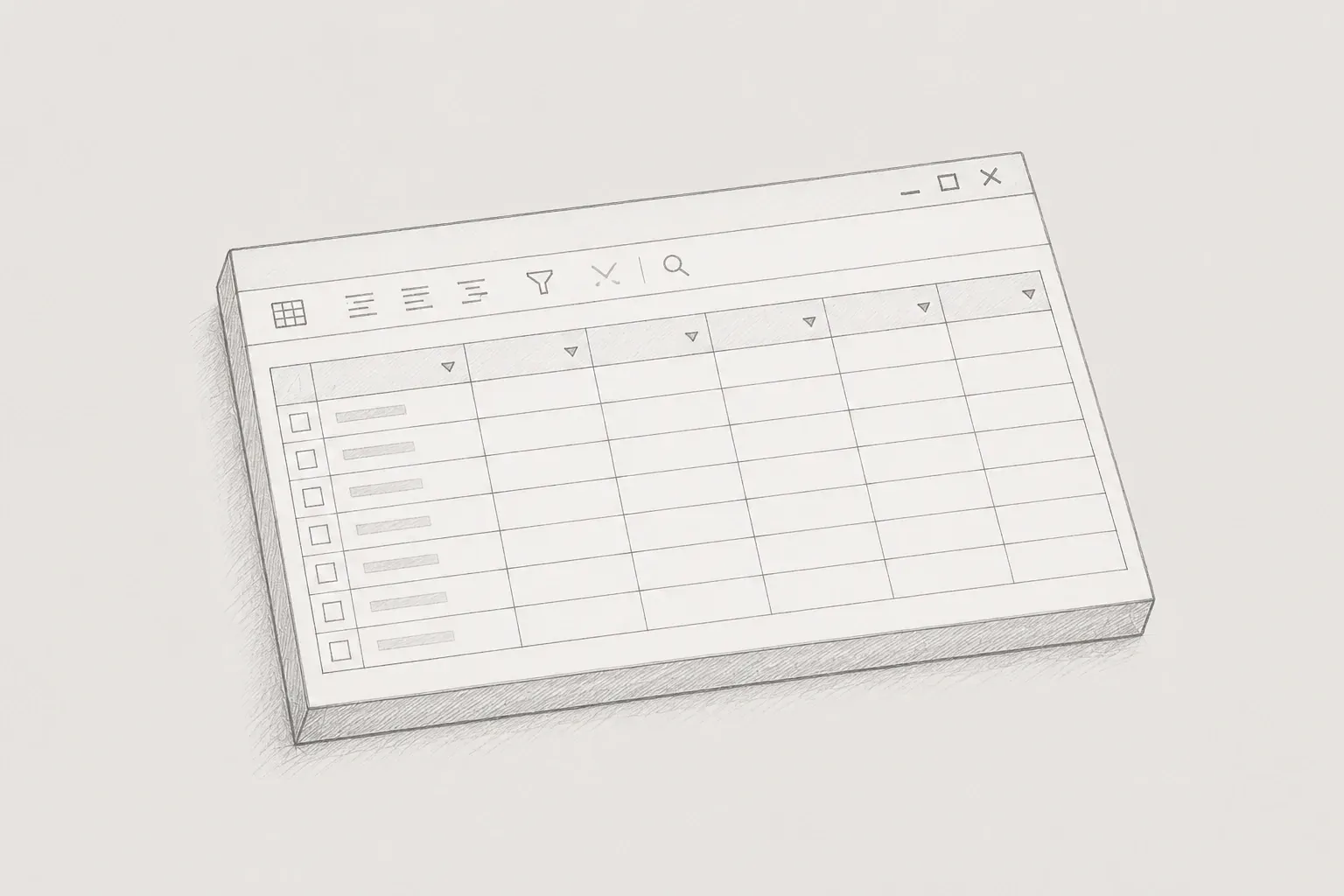
While carrying out the project, we developed a feature that allows users to download data viewed on the screen as Excel. Not just exporting data,but providing results in Excel that are as similar as possible to what the user sees on the screenwas the requirement.
For example, visual elements in the browser such as changes in text color based on status, specific rows highlighted, or distinct background colors applied to headers had to be maintained in Excel as well.
Initially, I thought that simply calling the exportDataAsExcel() method provided by ag-Grid would produce the same results as on the screen. However, in reality, the rendering methods of the browser and the operation of Excel Export differed, leading to a loss of styles. I would like to share the trial and error experiences and the resolution process I went through to address this issue. This article is based on the ag-Grid v28.0.2 environment, and some functionalities or behaviors may differ depending on the version.
2. Reasons why data differed between the screen and Excel: `valueFormatter` not applied
[Problem situation]
Some columns were displaying user-readable text transformed by `valueFormatter` instead of the original values fetched from the database.

When executing Excel output in this state, data that appeared as 'Approved' on the screen was output as the original data 'Y' in the Excel file.
[Solution]
Using the `processCellCallback` among ag-Grid's Excel Export options, I added a callback logic to process values to return the final text with valueFormatter applied before printing the cell value in the Excel file.
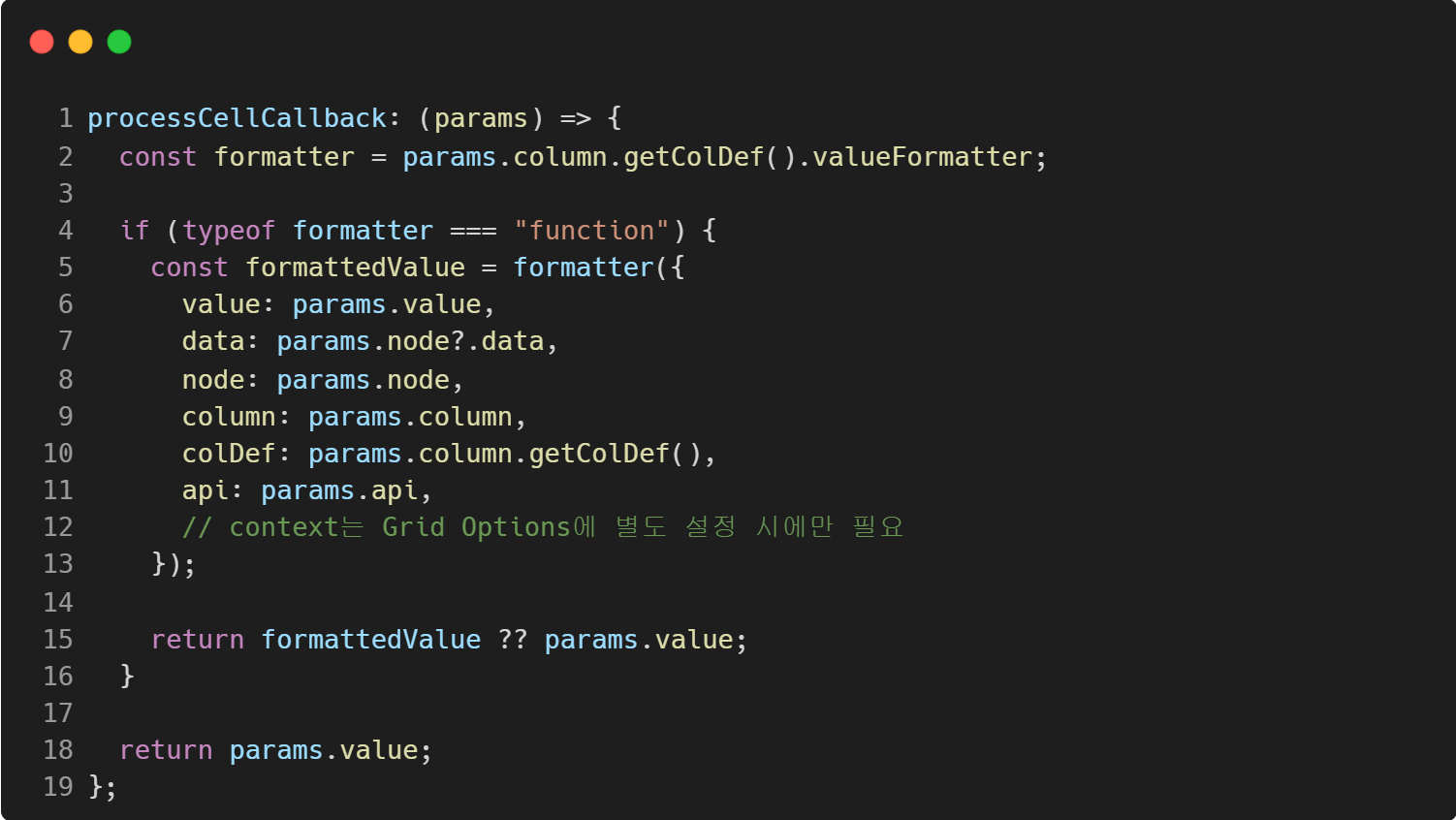
This processing allowed us to save intuitive text that users see on the screen in Excel, instead of internal data key values.
3. Reasons CSS does not apply to Excel
[Problem situation]
To change the text color of a cell to red under specific conditions in the browser, I used the `cellClass` setting as shown below.

The screen functioned normally with the CSS script (`.text-red { color: red; }`), but no styles were applied in the downloaded Excel file.
[Cause Analysis]
The Excel Export engine of ag-Grid cannot read the rendered CSS host environment of the browser. Instead, it was structured to build styles by referring to the internal object `excelStyles` array that converts to the Excel-specific XML style format.
In other words, the Excel style was not automatically reflected using only the CSS used on the screen. To solve this problem, a mapping method between excelStyles and cell classes was applied, and the process is described in the following section.
4. The interaction structure of excelStyles, cellClass, and cellClassRules
[Solution]
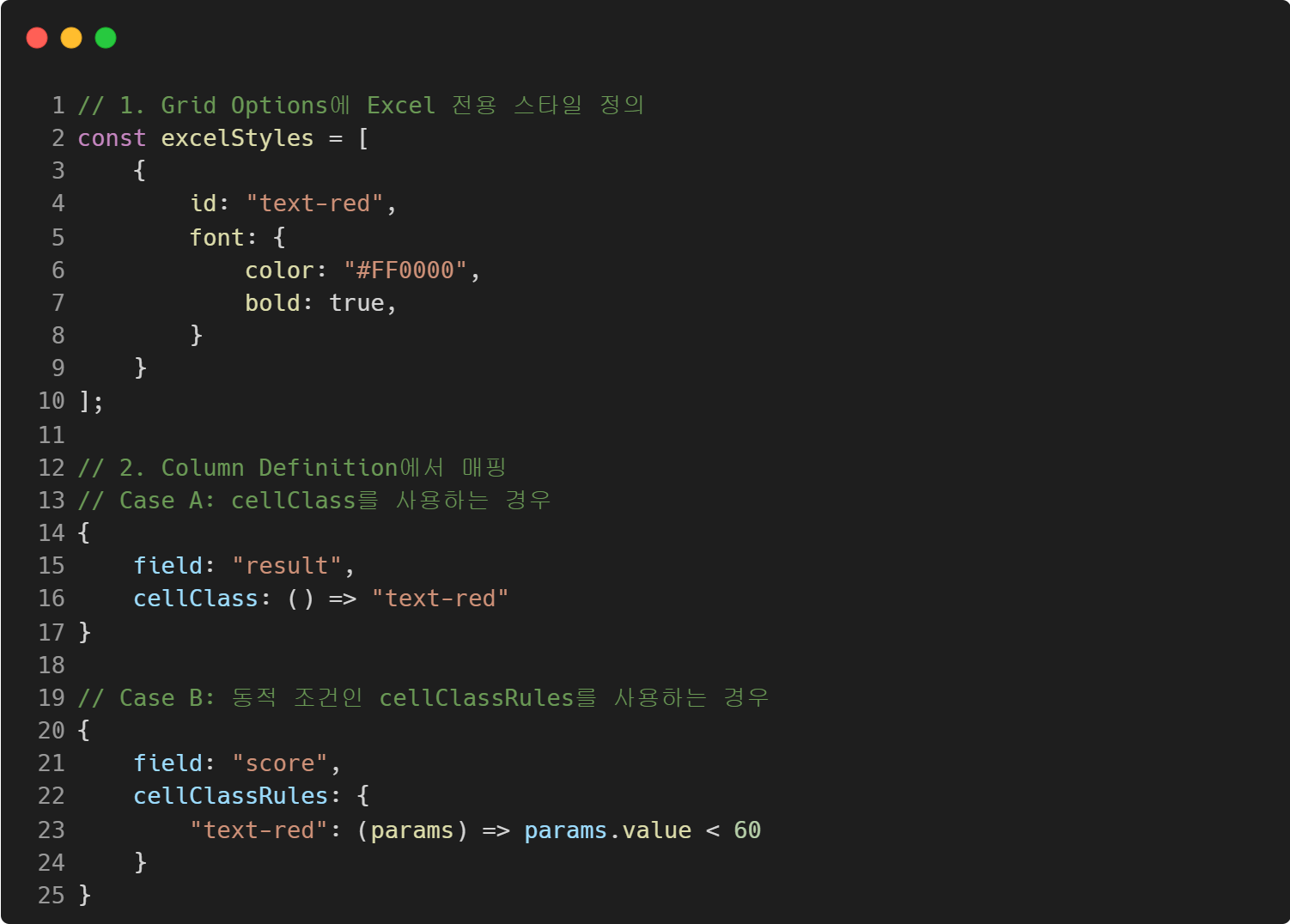
To solve the problem, I declared the `excelStyles` settings to be used commonly within the Grid. The key is Mapping CSS class names to `excelStyles` IDs 1:1to do.
[What I learned]
In version 28.0.2, whether the class name returned by the `cellClass` function or the activated class name satisfied by `cellClassRules` matches the id of excelStyles, the Excel engine automatically recognizes it. Thanks to this, properties like font color and weight are encoded correctly, allowing for a consistent integration of the screen CSS structure and the Excel style structure.
5. Application process of header style and special unique ID (header)
[Problem Situation]
I encountered an unexpected issue during the styling process of the header section. At first, I thought it would be sufficient to define and map the custom style ID just like I did successfully with the regular Cell method.

The screen CSS worked normally, but when I tried to download the Excel file, no styles were applied to the header. At first, I thought it was just a simple typo or a configuration mistake, so I repeatedly validated and tested the code, but the result was the same.
[Cause Analysis and Resolution]
I discovered in the official documentation that the header area in the ag-Grid Excel Export engine is treated very specially. The header does not recognize the custom ID (`blue-header`) specified by the developer and uses a reserved unique ID called `header` that ag-Grid has structured internally.
Accordingly, I modified the excelStyles setting to comply with the official specifications as follows instead of an arbitrary ID.

[Key Takeaways]
After the modification, I was able to confirm that the header style was properly reflected in the Excel file. This process helped me understand that the general Cell area and the Header area operate with completely different mechanisms in the internal parsing engine. When controlling header styles, it was essential to follow the built-in rules specified by the framework (`id: "header"`) rather than arbitrary class binding.
However, the above content is based on ag-Grid v28.0.2, and since the internal engine structure of Excel Export may have changed in v29 and above, I recommend checking the official documentation as well.
6. Conclusion
Through this experience, I was once again able to appreciate the importance of understanding how a library operates and choosing solutions that fit the project's situation, beyond simply implementing functionality.
Source and Reference Materials
* ag-Grid Official Documentation – Excel Export: https://www.ag-grid.com/react-data-grid/excel-export/
* ag-Grid Official Documentation – Excel Export Styles: https://www.ag-grid.com/react-data-grid/excel-export-styles/
* ag-Grid Official Documentation – Cell Styles (`cellClass`, `cellClassRules`): https://www.ag-grid.com/react-data-grid/cell-styles/
JJ