
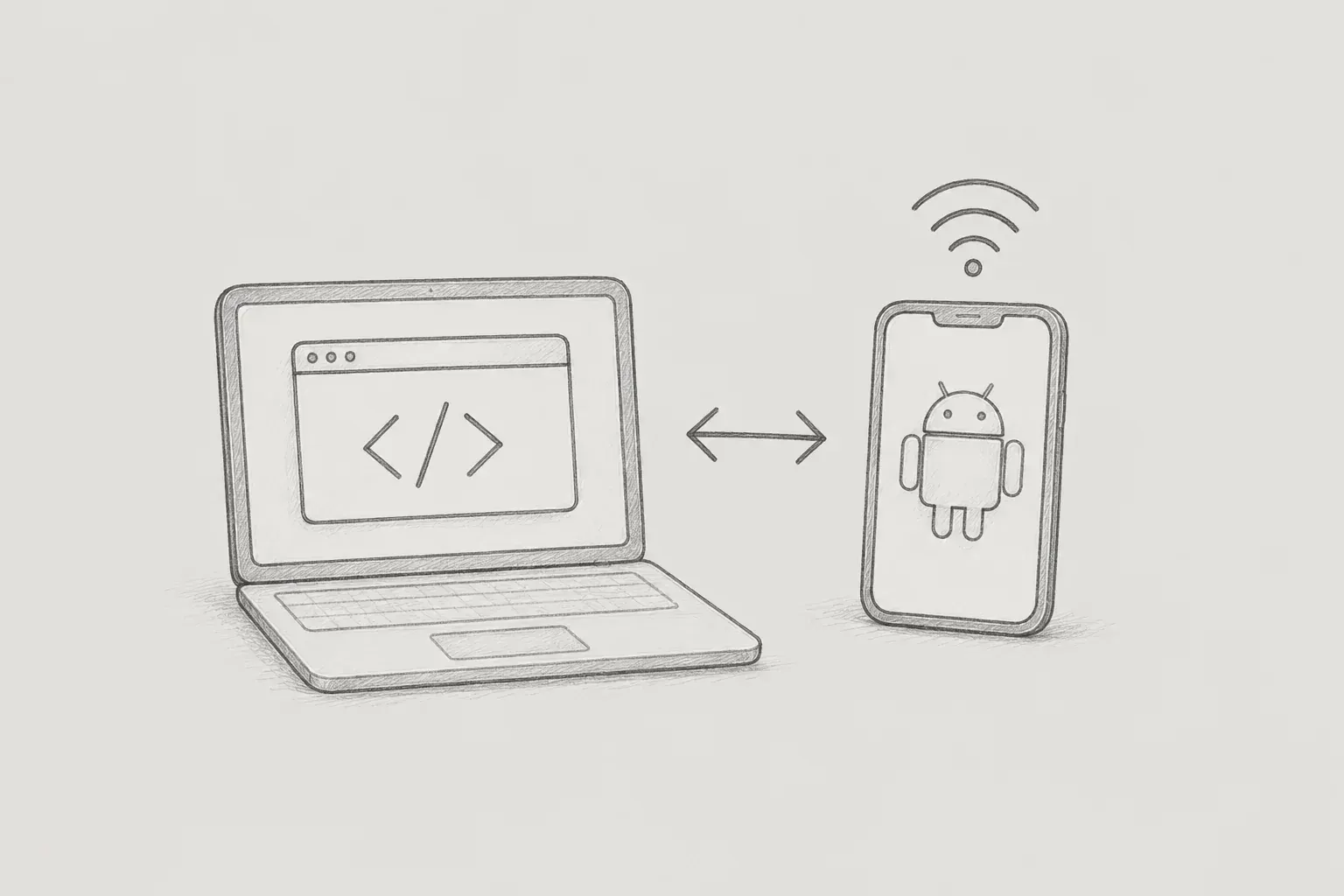
This article summarizes the causes of and solutions to network issues encountered when accessing a local development server in an Android Emulator environment. During frontend or mobile app development, it is essential to modify code in a local environment and immediately check the results. When a local server is run using a build tool such as Vite or Webpack, the development server address is displayed in the terminal, and the address is entered in a browser to view the screen.
Because the main workspace during development is usually a PC browser, you may not think deeply about the meaning of the value entered in the address bar or the flow of the network. You open a terminal directly on your computer, run the server process, and connect using a browser installed on the same computer, so the requester and the environment hosting the server are the same. However, when you run the default AVD environment of Android Emulator to verify responsive layouts in a mobile environment or test WebView behavior, you encounter a network structure different from that of a PC browser.
A local address that opened normally in the PC environment may fail to connect when entered in a browser or app inside the emulator. The terminal displays logs indicating that the server is running normally, and the address can be accessed without issue from a PC browser, but a connection error occurs in the emulator environment. It is easy to assume that the server itself is not running, but the actual cause may be that the server is running in one environment while the request is being sent from another. Resolving this issue requires an understanding of localhost, the emulator's virtual network structure, and the server's binding and firewall settings.
localhost is a hostname and is generally resolved to the loopback address 127.0.0.1 in an IPv4 environment. A loopback address returns network requests to the network stack within the current device instead of sending them externally. In an IPv6 environment, ::1 is used as the loopback address. In other words, localhost does not refer to a specific, fixed device; it refers to the system that is currently sending the network request. When you start a development server in a PC environment and enter localhost in the browser's address bar, both the requester and the server are on the PC, so the request is directed back to the PC itself and connects normally.
It is also important not to understand localhost and the server's address as the same concept. localhost is a name that refers to the requesting environment itself, while the address and port on which the server is actually accepting requests are separate matters. For example, if a server is running on port 5173, localhost:5173 means that a request will be sent to port 5173 on the loopback interface of the current environment. Therefore, assuming that the name localhost always refers to the development server on the same computer can cause problems when connecting from another environment.
The situation changes when you enter localhost inside Android Emulator. Android Emulator is a virtual Android device that runs using the resources of a PC. When a browser or app inside the emulator generates a network request, the starting point is the virtual device inside the emulator, not the PC. If the client inside the emulator sends a request to localhost in this state, the network stack processes it as a request directed to the emulator itself, which is the entity sending the request, rather than to the host PC. As a result, the emulator looks for a port inside itself instead of the server running on the PC and cannot find the server.
To resolve this issue, in the default virtual network environment of a typical Android Emulator, 10.0.2.2 can be used as a special address for accessing the loopback interface of the host machine. This address allows requests from the emulator to be forwarded to the development server on the host machine. Therefore, to access the PC's server from inside the emulator, change the address from localhost to the 10.0.2.2 format. For example, in an environment using port 5173, you can send requests by setting the address to 10.0.2.2:5173.
10.0.2.2 differs in nature from the IP address assigned to a PC on a typical local network. Because it is a special address provided for accessing the host PC in Android Emulator's virtual network environment, it cannot be used in the same way on a physical smartphone. Therefore, applying the address used in the emulator directly to a real device may not work. Understanding this distinction makes it possible to distinguish between cases where access works normally in the emulator but fails from a physical device using the same address.
However, using 10.0.2.2 does not automatically resolve every connection problem. Although 10.0.2.2 is an address provided so that the emulator can designate the host machine, whether the connection succeeds also depends on conditions such as the server's binding configuration and firewall status. If the connection still fails after changing the address correctly, check whether the server is configured to accept requests from external interfaces.
Many development tools and frameworks are configured by default to bind the server only to the localhost interface. If the server is bound only to 127.0.0.1, it can process requests coming through 127.0.0.1 from the same PC, but it cannot receive requests from the emulator arriving through another network interface. Therefore, to access the server from the emulator environment, you must change the binding scope so that the server can accept requests through external interfaces as well.
In projects that use Vite, you can change the binding configuration by adding a host option when starting the server. For example, you can start the server by running the following command in the terminal.
vite --hostAlternatively, you can run it by specifying an explicit IP address.
vite --host 0.0.0.0Here, 0.0.0.0 is not an address referring to a specific network device. It is the address used when binding a server so that it receives requests on the available network interfaces. Therefore, entering 0.0.0.0 itself in a browser as if it were the server address has a different meaning. It is best understood as a configuration value that specifies which interfaces the server should accept requests on.
You can also modify the script settings in the project's package.json file to use the npm run dev -- --host format. If you are already running the Vite development server with the npm run dev command, you can apply the host setting by passing additional options. With this setting, you can change the binding configuration so that the development server is not bound only to localhost and can also receive requests arriving through external network interfaces.
The server binding issue and the operating system firewall issue should be understood as separate areas. 10.0.2.2 addresses the issue of the address scheme the emulator uses to locate the host PC, while Vite's host setting determines which network interfaces the development server binds to and accepts requests on. The operating system firewall or port-blocking settings form a separate security layer that can block network packets even after both of these steps have been satisfied. Therefore, even if the server is open to external requests, the connection will fail if the PC firewall blocks the relevant port, so you should also check for firewall exceptions and whether the port is open.
Rather than checking all the issues at once, it is easier to identify the cause by checking them step by step. First, use localhost on the PC to verify that the server is working normally. Then, use 10.0.2.2 in the emulator to verify that it can access the host PC. If access still fails, check the server's binding status, and finally check whether the operating system firewall or security software is blocking connections to the relevant port. Narrowing the scope of the checks in stages makes it easier to determine whether the problem lies with the server itself, the emulator's network, or the operating system's security settings.
When you connect a physical Android mobile device rather than a virtual emulator to verify the screen, the network structure is different again. A physical smartphone does not exist inside the virtual network environment used by the emulator, so the 10.0.2.2 address does not work. To access the PC's local server directly from a physical device, the PC and mobile device must be on a network through which they can reach each other. For example, if the PC's internal IP address on the local network is 192.168.0.10, you can access it from the smartphone's browser or app using a URL such as http://192.168.0.10:5173. In this case as well, the server must be bound to receive requests through an external interface, and the port must not be blocked by a firewall or network policy.
When testing on a physical device, you should also remember that connecting the PC and smartphone to the same Wi-Fi does not always guarantee communication. If the router is configured to block communication between wireless devices, or if you are on an environment such as a corporate or public network that restricts access between clients, the PC's internal IP address may be inaccessible even when both devices are connected to the same network. Therefore, when testing a local server on a physical device, check not only the PC's IP address and port but also whether the network environment allows the two devices to communicate with each other.
Based on what we have covered so far, we can summarize the troubleshooting sequence to follow when a connection error occurs in the emulator environment.
First, access localhost:5173 from the PC browser to verify that the server itself is running normally.
Second, in the emulator, designate the host PC by using 10.0.2.2 instead of localhost.
Third, if the connection still fails with this address, check whether the server is receiving requests through an external interface and change the binding scope through the Vite configuration.
Fourth, if the connection still fails even though the server binding is configured correctly, check whether the port is being blocked by the operating system firewall or a network policy.
Following this sequence and understanding the network structure allows you to efficiently resolve connection problems that arise when verifying a mobile environment.
When using a local server in WebView, there is one additional factor to check compared with accessing it from a browser. WebView is also a client running inside Android Emulator, so when it accesses a server running on the PC, localhost refers to the emulator itself just as it does in a browser. Therefore, when loading a local development server in WebView, you must also specify the host PC's development server in the emulator using a format such as 10.0.2.2:5173. In addition, when the app makes network requests, there may be other factors to check in the app environment, such as Android's network security policies or Internet access permissions. If access works normally in a browser but fails only in WebView, it is best to broaden the investigation beyond the server address and also check the app's network settings.
In WebView-based environments in particular, the local server address may be written directly in the code, so you can also consider managing separate addresses for each execution environment. For example, using the emulator address in the development environment and the PC's internal IP address when testing on a physical device can reduce the need to modify the source code directly each time you test. As the project grows, not only the development server address but also values such as the API server address may differ between environments, so managing them with environment variables or separate configuration values is convenient.
As described above, the address used to access a local development server may vary depending on the development environment. You can distinguish them as follows: localhost:5173 in a PC browser, 10.0.2.2:5173 in the default Android Emulator, and the internal IP address of a PC connected to the same network when using a physical Android device. The important point is that these addresses do not represent different servers; they are different access paths used to view the same development server from different execution environments.
Ultimately, when accessing a local development server, what matters is not memorizing the address itself but distinguishing the environment sending the request from the environment where the server is running. When a browser running on the PC accesses a server on the PC, you can use localhost. In Android Emulator, however, localhost is resolved relative to the emulator, so you must use 10.0.2.2 to refer to the host PC. A physical Android device exists in a separate network environment, so you must use the internal IP address assigned to the PC. Therefore, even for a single development server running on the same 5173 port, the address used may vary depending on the environment from which it is accessed. Once you understand this distinction, you can view a situation where localhost does not work in the emulator not as a simple error but as a network problem caused by the request's origin and the server's location being different. You can then narrow down the possible causes in order, checking the next stages such as server binding and firewall settings.
KKAMJJING